
Why users asked
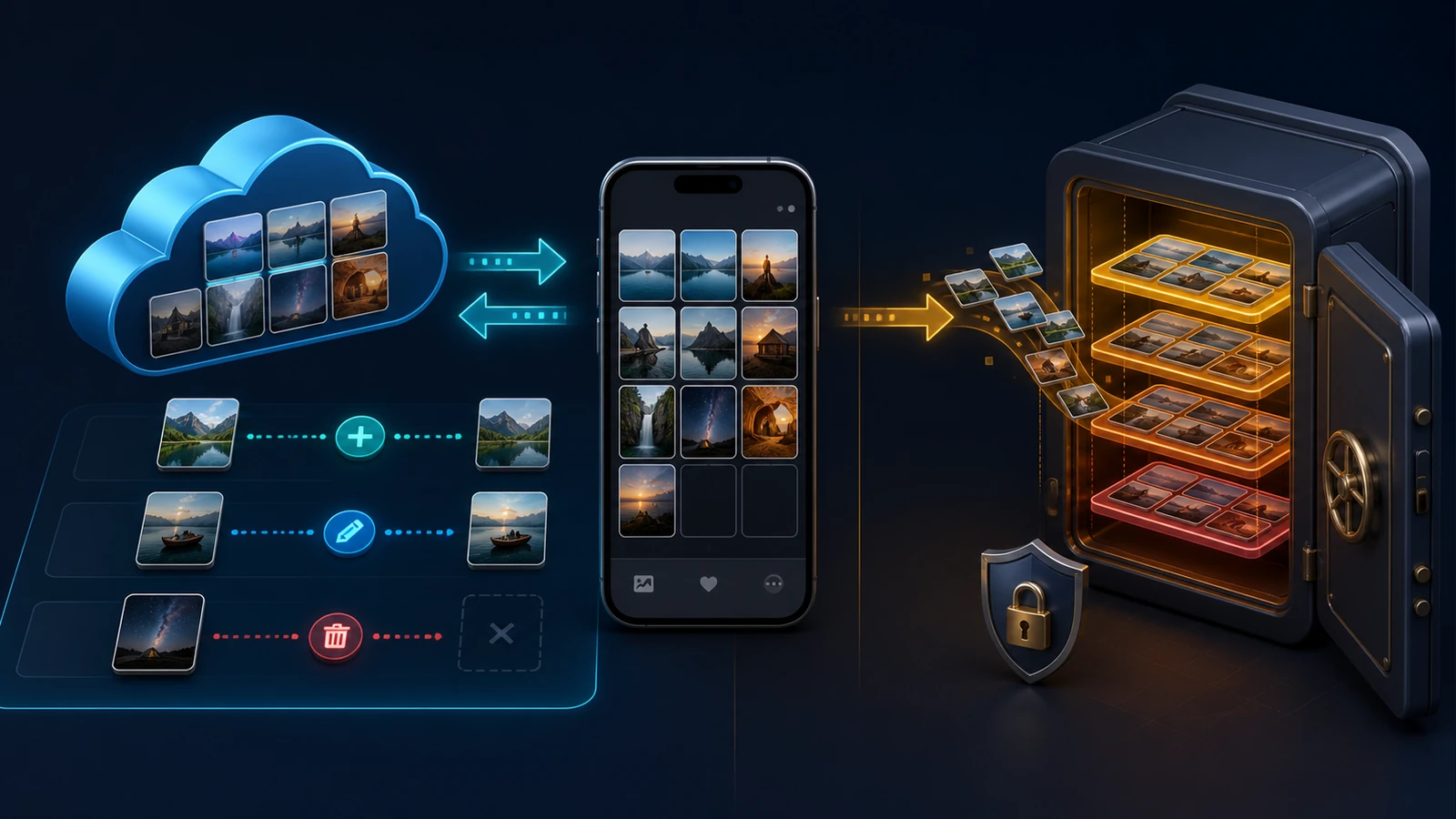
Some users noticed that we use two different words when describing SyncGallery. In one place we say it can synchronize files. In another we say it can back them up.
That is a fair question because sync and backup can look almost identical at first. Both may upload the same photo from the same phone to the same cloud folder. The difference appears later, when a file is changed, deleted, corrupted, or overwritten.
The short version is:
- Sync is mainly about keeping locations aligned. It tries to make the current state available in more than one place.
- Backup is mainly about recovery. It keeps a copy that can help you get data back after something goes wrong.
The NIST definition of backup is deliberately simple: a copy of files and programs made to support recovery. That definition does not require multiple versions.
Versioning still matters. One recovery copy can protect you if a phone is lost. It may not protect you if a damaged file replaces the good cloud copy, or if a deletion is synchronized to every location. Multiple recovery points protect against more kinds of failure.
Synchronization follows the current state
A typical two-way sync watches two locations. When a file is added, changed, or deleted in one location, the corresponding change is applied to the other location.
Microsoft describes OneDrive sync in exactly this practical way: adding, changing, or deleting a file in the local OneDrive folder also adds, changes, or deletes it online, and vice versa. You can read the full explanation in Microsoft's OneDrive synchronization guide.
That behavior is useful. It keeps the latest files available on your phone and in the cloud. It also creates a risk: a mistaken edit or deletion can propagate.
Synchronization does not have to be two-way. An upload-only rule is also a form of synchronization. It sends device changes to the cloud without downloading cloud changes back to the phone. Whether that rule behaves like a mirror or like a protective copy depends on its deletion and update settings.
Backup is about what you can recover
Calling something a backup is not only about where the bytes are stored. The important question is what happens after a failure.
Ask these questions about any backup setup:
- If the original file is deleted, does a recoverable copy remain?
- If the original is overwritten or corrupted, can an earlier good copy be restored?
- If an automatic job runs after the mistake, does it preserve the good copy or replace it?
- Can you tell which files were copied successfully?
- Do you know how long deleted files and older versions are retained?
A one-way upload can satisfy the first question while failing the second. A versioned backup can answer both, but only within its retention limits.
What SyncGallery actually stores
Normal SyncGallery rules track the current relationship between a device file and a cloud file. They compare the two sides and decide whether to upload, download, update, delete, or ask for review.
SyncGallery also keeps a visible task history, so you can check what was transferred and whether an operation succeeded. That history is an activity record. It is not a store of old file contents.
SyncGallery does not maintain its own file version catalog. It does not keep version 1, version 2, and version 3 under one file record, apply a retention policy, or offer a restore-point browser. A cloud provider or storage server may add those capabilities, but they are outside SyncGallery and vary by destination.
This means SyncGallery can create useful recovery copies, but it is not a complete versioned backup system by itself.
Example 1: configure a synchronization rule
Use this setup when you want the device and cloud to represent the same current collection.
- Create a rule and select Two ways sync with cloud.
- Choose the device folder or albums and the matching cloud folder.
- Enable Update cloud files when modified on device.
- Enable Update device files when modified on cloud.
- Enable the two deletion options only if you want deletions to propagate in both directions.
- Review the planned operations during the first sync before approving them.
With both deletion settings enabled, deleting a file on either side can delete its counterpart. That is correct mirror behavior, but it should not be your only protection against accidental deletion.
Example 2: configure a backup-like upload rule
Use this setup when the device is the main source and you want cloud copies to survive a local deletion.
- Create a rule and select Just upload to cloud.
- Use folder-level upload if you want new files in a device folder to be uploaded automatically.
- Choose a dedicated cloud folder for these copies.
- Turn off Delete in cloud when device file deleted.
- If you use file-level selection, also turn off Delete in cloud when unmark.
- Consider enabling Re-upload to cloud if file was deleted there if the device should remain authoritative.
The setting Update cloud files when modified on device needs a deliberate choice:
- Turn it on if the cloud should receive the latest edited file. Without provider-side version history, the previous cloud contents may be replaced.
- Turn it off if the first uploaded copy should remain unchanged. Later edits on the device will not be backed up by that rule.
This setup creates a useful independent copy and prevents a normal device deletion from automatically removing it. It is still not managed version history.
Example 3: use Quick Upload as manual snapshots
Quick Upload works differently from normal sync rules. You choose files and send them to a cloud folder on demand. SyncGallery uploads them once and stops tracking them afterward.
For the safest Quick Upload behavior:
- Create a Quick upload rule.
- Choose a dedicated destination folder.
- Under If file with the same name exists in destination, select Rename and keep both.
- Send files from SyncGallery or through Android's Share menu whenever you want to preserve a copy.
If the destination already has the same name with different content, the new file receives a numbered name such as photo (1).jpg. If that name is also occupied, the number increases until a free name is found. If the same file is uploaded again without changes, SyncGallery skips it instead of creating a duplicate.
Quick Upload can therefore preserve several separately named copies when you send changed files repeatedly. It is the closest SyncGallery gets to manual snapshots, but it is not managed versioning:
- It runs only when you send files.
- It does not know whether you remembered every important file.
- It does not track later edits or deletions.
- It does not group numbered files into a version history.
- Choosing Replace existing file removes the keep-both protection.
Cloud version history can add another safety layer
The destination may preserve older file contents even when SyncGallery updates the current cloud file. That protection belongs to the provider, not to SyncGallery.
OneDrive. Microsoft's current OneDrive version history documentation says version history works with all file types, including photos and videos, and that file version history is retained for 30 days. A work or school administrator may disable versioning. Microsoft 365 subscribers also have a separate Restore your OneDrive feature that can undo activity across the whole drive during the last 30 days.
Google Drive. Google's file version documentation says an older version of a non-Google file may be permanently deleted after 30 days or after 100 newer versions. A specific version can be marked Keep forever from the Drive website.
Other destinations. A NAS or server reached through WebDAV, SMB, SFTP, or FTP may have snapshots or version history, but the protocol itself does not guarantee that protection. Check the storage system that sits behind the connection.
Retention rules and plan features can change. Before relying on provider history as your recovery plan, check the current documentation and test restoring a non-critical file.
So, is SyncGallery sync or backup?
It is primarily a synchronization and controlled file-transfer app. Depending on the rule, it can also create useful backup copies.
- Two-way sync is for keeping the current state aligned.
- Upload only with cloud deletion disabled is a backup-like one-way copy.
- Quick Upload with Rename and keep both can create manual snapshot copies.
- Provider version history can add time-limited recovery for overwritten files.
What SyncGallery does not provide is a complete versioned backup system with automatic recovery points, retention management, and a version restore browser.
For photos or documents you cannot afford to lose, use SyncGallery as one layer, then make sure another layer provides independent, versioned recovery. Most importantly, test the restore process before you need it.