
Why one shared folder gets confusing
- One delete can affect everyone. If everyone syncs the same shared folder both ways, removing a duplicate from your phone may remove someone else's original too.
- One bad sync can spread. A wrong folder, a failed reconcile, or an accidental cleanup can become a family-wide change instead of one person's local mistake.
- People curate differently. You may want a tidy gallery. Someone else may want to keep every shot. One shared folder forces one common view.
- Storage ownership becomes unclear. When everyone writes to the same place, it is harder to know whose account, quota, and cleanup rules actually matter.
The cleaner model: own your folder, subscribe to theirs
SyncGallery treats family sharing as a set of independent rules, not one giant shared folder:
- You own your photo folder. Your photos sync to your own Google Drive or OneDrive folder, under your account and quota.
- You share that folder read-only. Family members can receive your photos, but they do not write changes back to your cloud folder.
- They add your folder as a download-only rule. Your photos appear on their phones, but their deletes and edits stay local unless they explicitly create their own upload rule elsewhere.
- You subscribe to their folders the same way. One download-only rule per person gives you a combined family view without shared ownership chaos.
Result: everyone can see the trip from everyone's camera, but each original library remains protected. Your phone becomes your personal view of the family pool, not a control panel for everyone else's files.
How SyncGallery keeps the boundaries clear
Every rule has its own direction
For your own photo folder, you can use an upload or two-way rule. For someone else's family folder, choose Just download from Cloud. That rule only pulls cloud → phone. It never sends your local delete, edit, or cleanup back to their cloud folder.
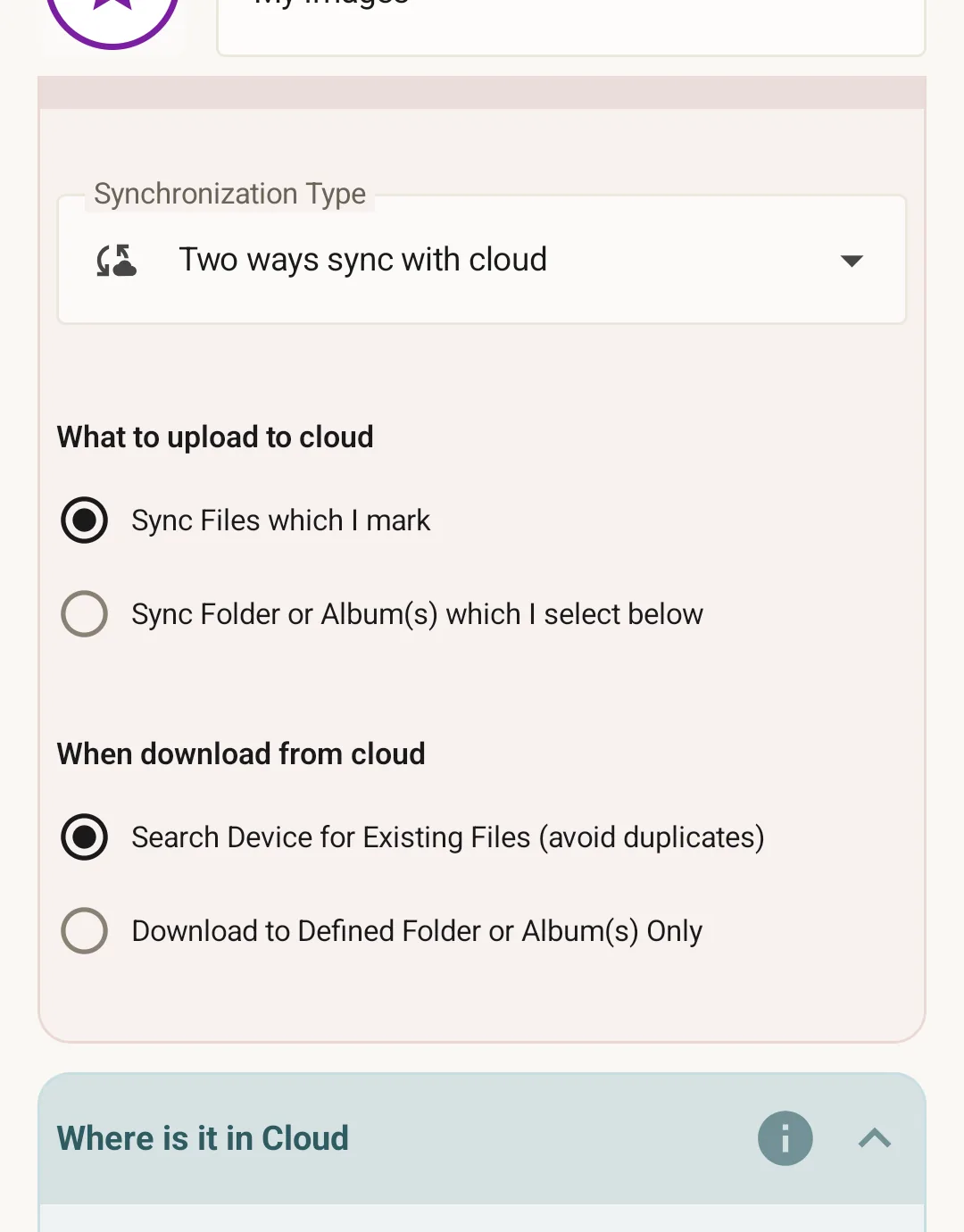
Local cleanup stays local
When you delete a photo that came from a download-only family rule, SyncGallery removes it from your phone only. Their cloud folder is untouched. Their phone is untouched. Your gallery can be clean without asking the whole family for permission.
You choose whether deleted files come back
Download-only rules need one extra choice: should SyncGallery re-download a photo if you removed or changed your local copy? SyncGallery lets you decide per rule.
Re-download from cloud if file was deleted on device controls local cleanup. Leave it off when you want to curate your own view and keep deleted duplicates away. Turn it on when you want your phone to always mirror that person's cloud folder.
Re-download from cloud if file was modified on device controls local edits. Leave it off when you want to keep your local edit. Turn it on when the cloud version should always win and restore the original.
In plain language: keep both switches off for my personal curated view. Turn them on for always match this person's folder. You can choose different behavior for Anna, Mark, parents, or any other shared folder.
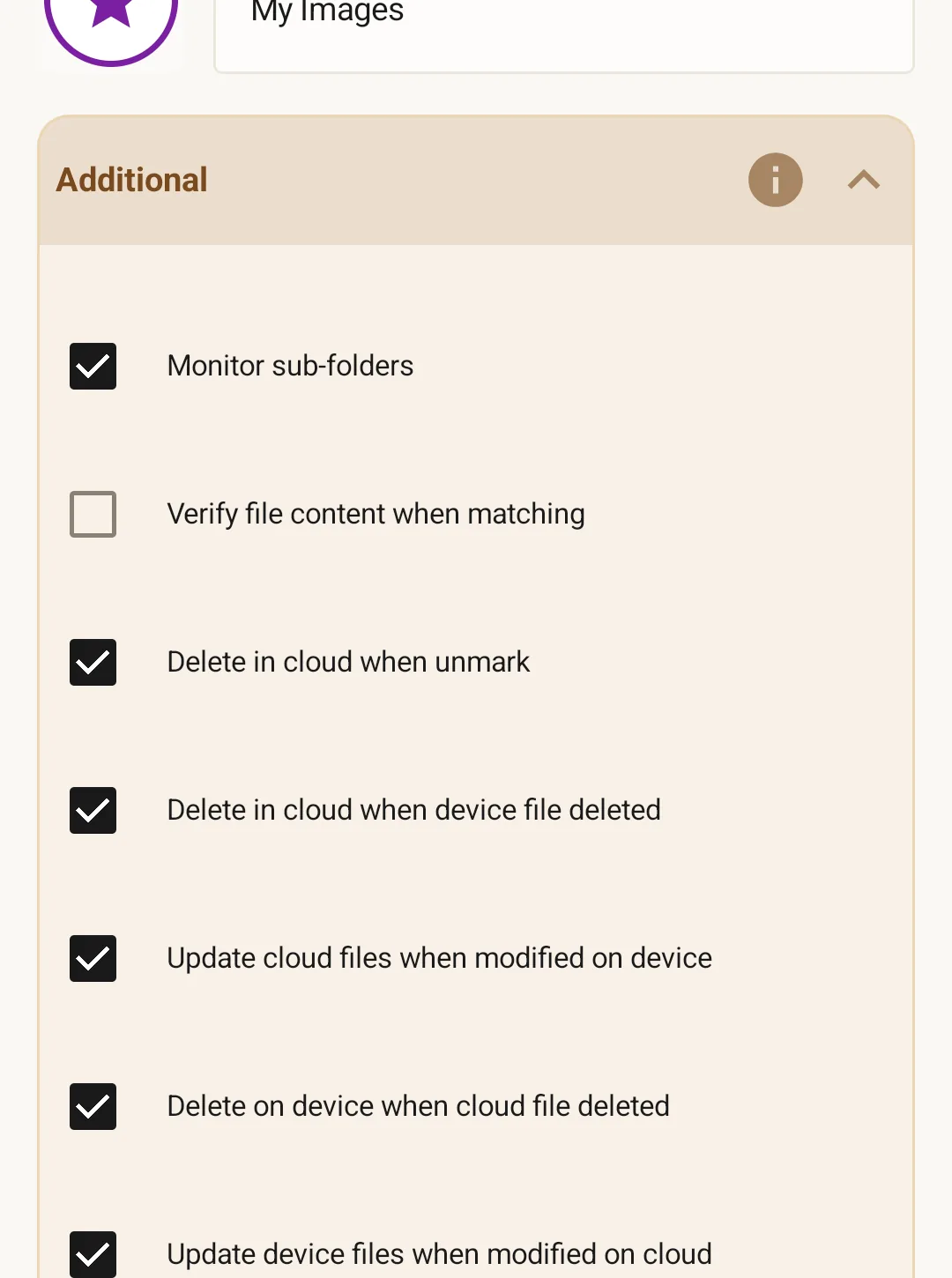
Each person's photos stay easy to find
Each rule has its own view. Open Anna's rule to see only photos received from Anna. Open Mark's rule to see Mark's photos. You can still browse everything together in your gallery, but the source of each family collection stays understandable.
Everyone contributes. Everyone controls their own view.
Then create a family archive from the best photos
After the trip, each person can clean up their own phone: keep the best shots, remove duplicates, ignore what they do not care about. Nobody has to agree on one universal cleanup decision immediately.
When you are ready, create one more SyncGallery rule for a shared family archive folder and upload the selected keepers. Other family members can do the same from their own curated views.
A simpler option is to choose one archivist. That phone subscribes download-only to everyone, the archivist selects the family-wide best photos, and SyncGallery uploads them into one archive folder owned by that person or by a dedicated family account.
Start with one family folder
Install SyncGallery, add a family member's shared cloud folder as a download-only rule, and receive their photos without putting their originals at risk.
Get it on Google PlayFrequently asked questions
Does everyone in the family need SyncGallery?
No. SyncGallery is needed on the phone where you want controlled family sync and local curation. Other people can keep using their normal Google Drive or OneDrive setup. They only need to share a folder with you; you add that shared folder as a download-only rule.
If I delete a shared photo from my phone, will it disappear for them?
No. With a download-only rule, your delete is local. SyncGallery does not send it back to their cloud folder and does not notify them. Their original remains where it is.
Can I separate photos by person?
Yes. Each download-only rule has its own view, so you can open Anna's rule, Mark's rule, or Parents' rule and see only the photos that came from that source. You can also use your normal gallery view to browse everything together.
Screenshots and labels in this page reflect the SyncGallery app at the time of writing. The exact wording of UI elements may evolve in future versions.