
Picture this
You tap your daughter's face, and every photo of her appears: from your phone, your partner's OneDrive, her grandparents' Google Drive, and the hard drive from 2012 that nobody has opened in years. You search for "beach" and get twenty summers in one scroll. You find that the same wedding photo is stored in four places, keep the best copy, and the other three disappear from the clouds too.
And it all works on a plane, with no internet connection.
That is what you get when every photo you own lives in one gallery on one device. This guide shows how to build it with SyncGallery, even for a library of a million files.
Your photos are everywhere, and nowhere complete
Most families do not have one photo library. They have several, and none of them is complete:
- the current phone, and old phones in a drawer
- a NAS or a PC with folders copied from older devices
- external hard drives that come out once a year
- two or three cloud accounts, often on different services
- photos family members took at the same events, kept in their own accounts
Each place holds part of the story, and many photos exist in three or four places at once. Nobody knows which copy to keep, so nothing ever gets cleaned up.
Why viewing each cloud separately does not help
Many apps, including SyncGallery's own file explorer, can show photos straight from a cloud or network storage. That is fine for looking at one place at a time. It cannot bring your collection together.
To find the same person across five sources, or the same photo stored in three of them, every photo has to be analyzed by the same method, in the same place:
- Plain storage does not analyze photos. A NAS share, an FTP server, or a WebDAV folder stores files and nothing more. There are no faces, no visual search, and nothing to compare.
- Each service analyzes only its own files. Where a cloud service does recognize faces or find similar photos, it uses its own methods, and the results stay inside that service. A person recognized in your account is unknown in your partner's.
- Results from different methods do not line up. Face groups and similarity scores from different systems cannot be merged into one list of people or one set of duplicates.
- Analysis needs the pixels. To analyze a photo, the app has to read the image. Doing that over the network for every photo, again after every change, means downloading the whole library anyway, just without keeping it.
SyncGallery takes the opposite approach. It keeps a compact copy of every photo on your device, and every photo from every source goes through the same face detection, the same visual comparison, and the same duplicate search. All the results live in one index.
A million photos in about 120 GB
The reason this works on a phone is compression. Your full-size originals stay where they already are. The device keeps a smaller copy that looks great on a phone screen.
We took 40 camera photos from a Samsung Galaxy S10+, with an average size of 3.9 MB, and re-encoded them with the same size and quality settings SyncGallery uses:
| Setting | Photo | Average size | Photos per 100 GB |
|---|---|---|---|
| Original | camera photo | about 3.9 MB | about 26,000 |
| Tablet | 2048 px, quality 80% | about 490 KB | about 200,000 |
| Medium | 1280 px, quality 60% | about 170 KB | about 590,000 |
| Phone | 1024 px, quality 50% | about 120 KB | about 830,000 |
Video shrinks just as much. The setting limits the video bitrate, and the sound is kept, which adds about 2 MB per minute for a typical phone recording:
| Setting | Video | About per minute | Video per 100 GB |
|---|---|---|---|
| Original | 1080p video recorded on the S10+ | 106 MB | about 16 hours |
| 1080p | up to 8 Mbps | 62 MB | about 27 hours |
| 720p (Tablet) | up to 4 Mbps | 32 MB | about 52 hours |
| 480p (Medium) | up to 2 Mbps | 17 MB | about 99 hours |
| 360p (Phone) | up to 1 Mbps | 9.4 MB | about 177 hours |
Now take a really large collection: one million photos and 100 hours of video. As originals, it needs about 4.5 TB. No phone can hold that. Compressed:
| Setting | Photos | Video | Total | Fits on |
|---|---|---|---|---|
| Phone | 120 GB | 56 GB | about 180 GB | a 256 GB phone |
| Medium | 170 GB | 101 GB | about 270 GB | a 512 GB phone |
| Tablet | 490 GB | 191 GB | about 680 GB | a 1 TB phone or tablet |
These are averages, and every photo and video compresses differently. Leave some room for Android, your apps, and SyncGallery's own index. Most libraries are far smaller than a million files, so for most people even the tablet setting leaves plenty of space.
Step 1: connect every place your photos live
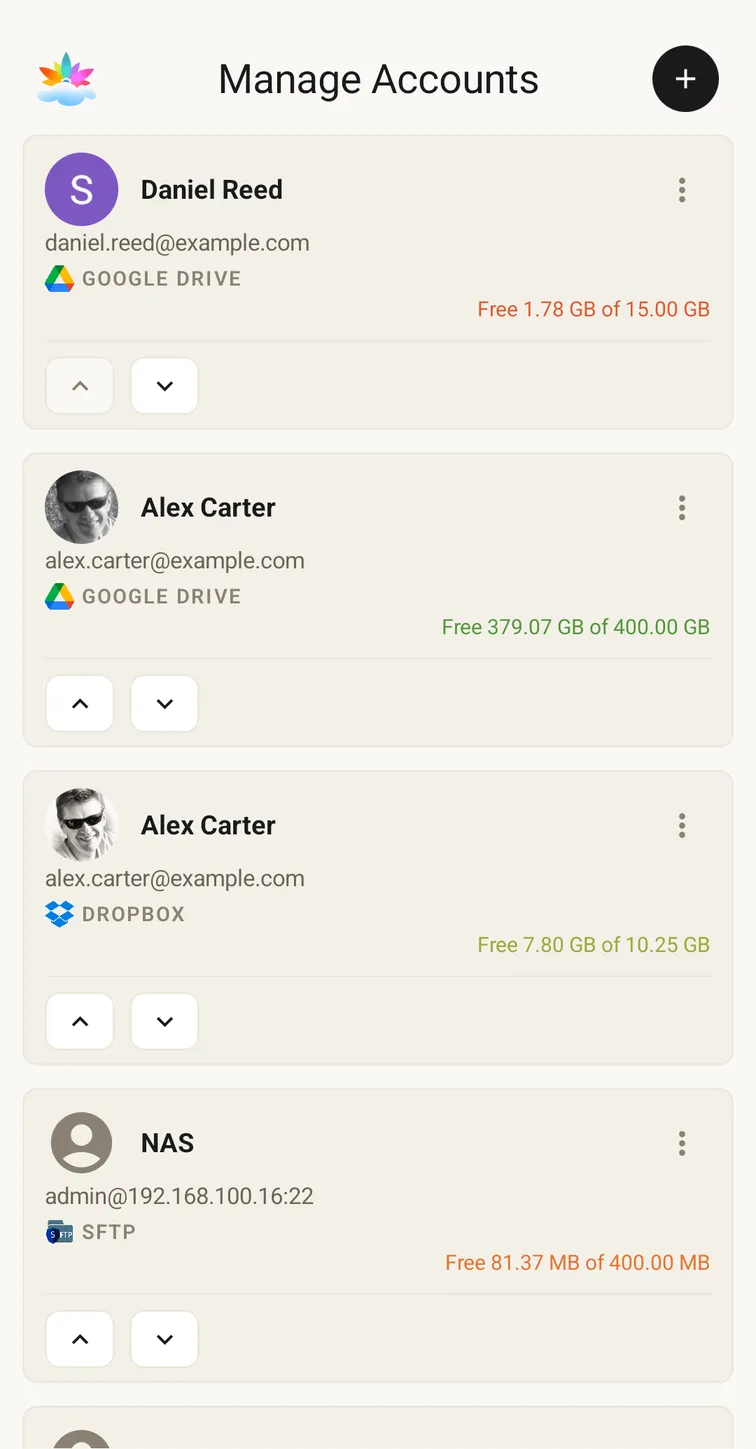
SyncGallery connects directly to OneDrive, Google Drive, Dropbox, pCloud, and Yandex Disk, and to your own storage through SMB, SFTP, FTP/FTPS, WebDAV, and Nextcloud. You can add several accounts of the same service, for example your own Google Drive and a family member's. To keep a backup in storage you choose, see Android photo backup.
- A NAS or home PC: connect it through SyncGallery Companion, SMB, SFTP, WebDAV, or Nextcloud.
- External hard drives: plug the drive into a NAS, a router with a USB port, or a PC, and share it on the home network. SyncGallery connects to it like any other network folder, with no copying needed. Keep the drive connected while the rule collects its files, and afterwards whenever you want changes to reach it.
- Old phones: upload their folders to a cloud or network folder once, then collect them from there.
- Family members: add their accounts with their consent, or ask them to share a folder link. SyncGallery can download from shared folder links of Dropbox, Google Drive, OneDrive, pCloud, and Yandex Disk without signing in to the other account. Shared links are download-only.
A family plan is a perfect example. Microsoft 365 Family subscriptions started before October 8, 2026 include 1 TB of OneDrive storage for each of up to six people: six separate libraries that usually never meet. Newer subscriptions, and from May 2, 2027 existing ones at renewal, move to 2 TB of shared storage, but each person's files stay private either way. With one rule per family member who agrees to share, all of those photos meet in one gallery.
Give each rule its own folder on the device, for example Pictures/Collected/NAS, Pictures/Collected/Anna OneDrive, and Pictures/Collected/Old phone. These folders become important later, when you choose which copy of a duplicate to keep.
Step 2: turn on compression
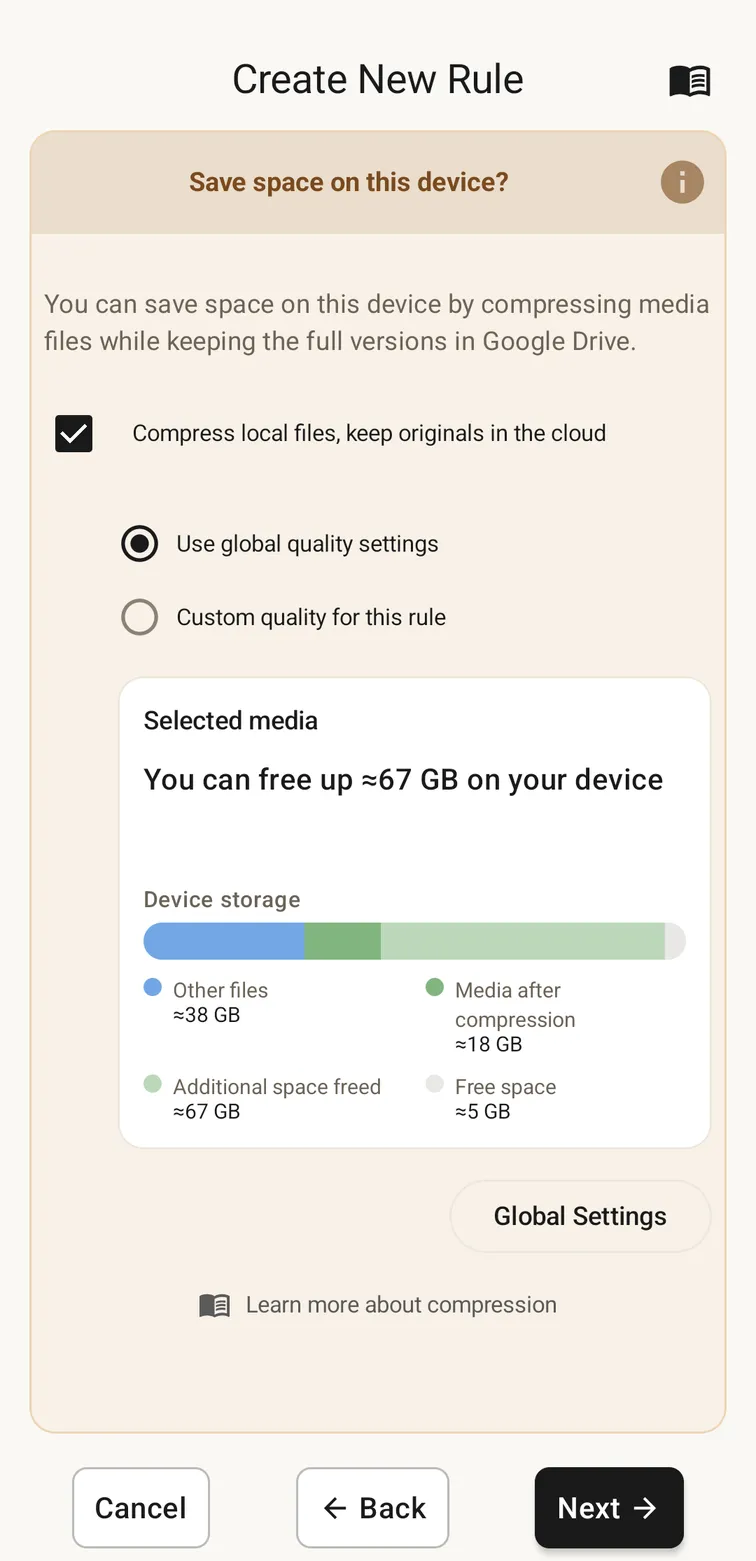
In each rule, turn on Compress local files, keep originals in the cloud, and pick a quality step. Three of the five steps are marked for phone, tablet, and TV screens. The rule wizard shows how much space you will save before anything starts.
Read how photo and video compression works before you start.
Your originals are protected at every step:
- A file on the device is compressed only after SyncGallery confirms that the original is stored in the cloud or on the network storage.
- A compressed copy is never uploaded in place of the original. When something has to be uploaded, SyncGallery fetches the original first, or does not upload at all.
- When you share, edit, or export a compressed photo, SyncGallery fetches the full-quality original.
- Capture date, GPS location, and orientation are copied to the compressed file. If they cannot be kept, the file is not compressed.
- SyncGallery never enlarges a file, and keeps the original if compression would save less than 20%.
Compression works for JPEG photos and MP4 videos. Other formats are kept as they are.
Step 3: let your phone get to know your photos
Once the files arrive, the compressed copies keep their dates and GPS data, so decades of photos fall into place on one timeline. Then SyncGallery starts learning your collection:
- People: faces are detected and grouped, across photos from every source.
- Places: photos with GPS data appear on the map.
- Search: find photos by what they show, and search text in documents and screenshots.
- Similar photos: every photo is compared visually with the rest of the library.
All of this happens on your device. Your photos are not uploaded to any analysis service. The analysis models are downloaded once, and from then on browsing, search, people, and similar photos work without an internet connection. Only the map background needs a connection. Place names are optional, and SyncGallery asks before sending a photo's GPS coordinates to Google's geocoding service to show them.

It works while you sleep
A lifetime of photos is a lot of work for a phone, and SyncGallery is built to do it gently.
Collecting means downloading every original once. For the million-photo library above, that is about 4.5 TB. By default, sync uses Wi-Fi only. Compression runs in the background while the device is charging. Photo analysis waits for a charger and at least 20% battery. Heavy work pauses when Android reports that the device is getting hot, and while you scroll the gallery.
The result: your battery and your phone stay healthy, and the work happens mostly at night on the charger. A very large collection takes days, and a million files can take a few weeks of nights. You can use the gallery the whole time, and every morning it is more complete.
Step 4: find duplicates and keep the best copy
With everything in one place, duplicates finally become visible. The same wedding photo might come from your phone backup, your NAS, and two family members' accounts.
Open Tools, then Duplicate detection, and choose Similar photos. It compares photos visually, so it recognizes the same picture even when the copies came from different sources. The duplicate photos guide covers both modes step by step.
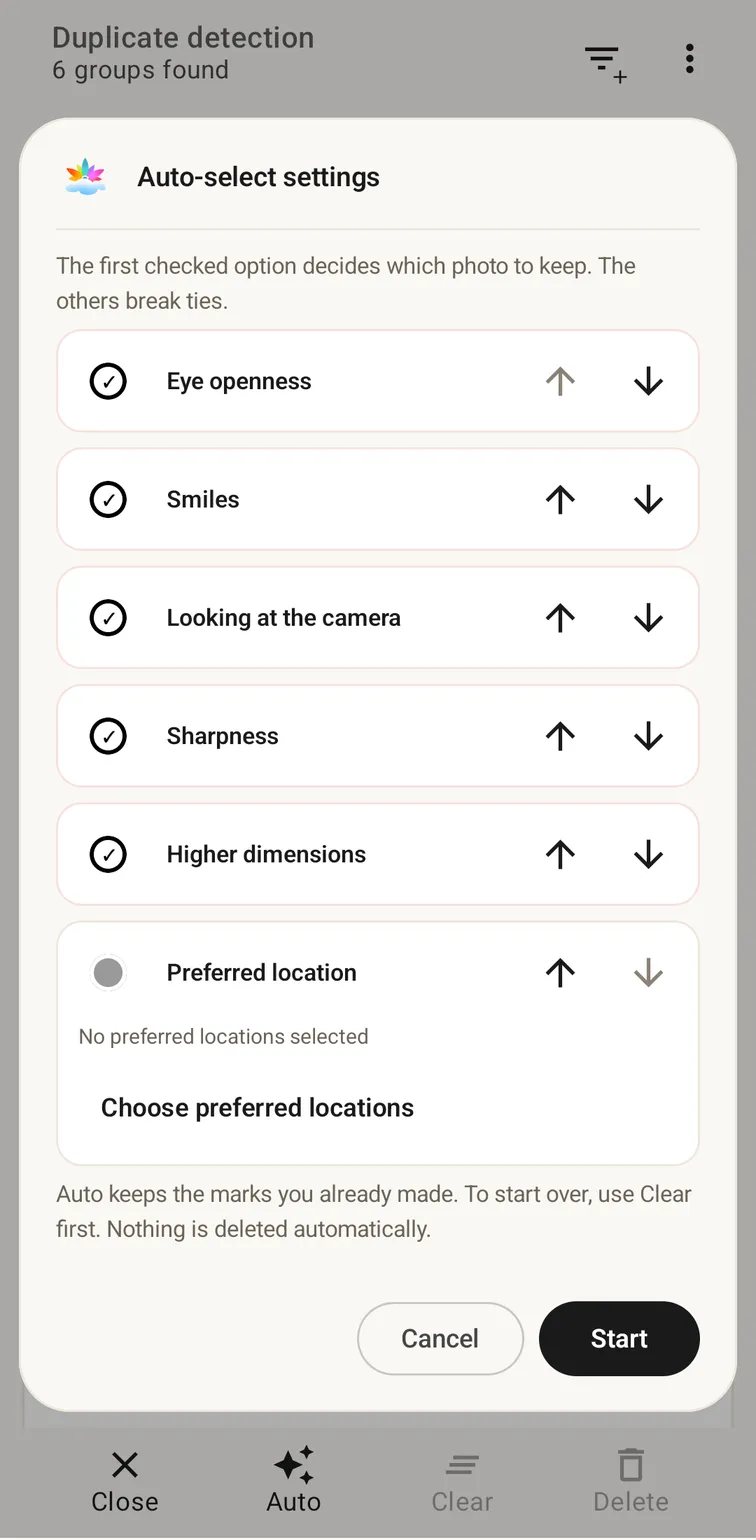
Tap Auto and SyncGallery marks the copies to remove in every group. You decide what matters, in order: Looking at the camera, Eye openness, Smiles, Sharpness, Higher dimensions, and Preferred location. The first checked option decides, and the others break ties.
Preferred location is where the folders from step 1 pay off. Put them in the order you want to keep copies. For example, keep the copy in Pictures/Collected/NAS first, then the one from your own OneDrive, and remove the rest.
Nothing is deleted automatically. Auto only marks files, and you review the result before anything is removed.
Step 5: clean once, clean everywhere
This is where two-way rules shine. When Delete in cloud when device file deleted is enabled for a rule, removing an extra copy on your phone also removes it from that cloud or network storage. One cleanup on the phone tidies every source at once, and frees space in every account.
You stay in control the whole way. When more deletions are planned than the review threshold allows (five by default), SyncGallery holds them as tasks for your review. You can set a different threshold for each rule.
Before a big cleanup:
- Make sure every photo you want to keep has a full-size copy in a location you trust. If a family member's account will be emptied, check that the kept copy is somewhere you control.
- Check whether your cloud or NAS keeps deleted files for a while. Most cloud services have their own recycle bin.
- Start with one folder or one source, review the planned tasks, and expand when the results look right.
Prefer to only collect and never touch the sources? Use Just download from Cloud rules with Re-download from cloud if file was deleted on device turned off, or turn off Delete in cloud when device file deleted in two-way rules. Duplicates are then removed only from the device.
Everything you own, in your pocket
At the end, every photo and video you and your family own lives in one gallery on one device: on one timeline, grouped by people and places, searchable, and free of duplicates. It works on a plane, in the countryside, or anywhere without a signal. The full-size originals stay in your clouds and on your network storage, one copy of each, in the place you chose.
For many people, it is the first time they see their whole collection in one place. Start with one source tonight, put the phone on the charger, and see how much of your story is waiting to be found.
Further reading

Try SyncGallery
A gallery app with cloud sync you control, for Android.
Get it on Google Play