 SyncGallery
Hide an album
- In the Gallery section, open Albums.
- Long-press an album to select it, then tap more albums to add them. You can also select a group of albums; hiding a group hides every album in it.
- Tap Hide in the bar at the bottom.
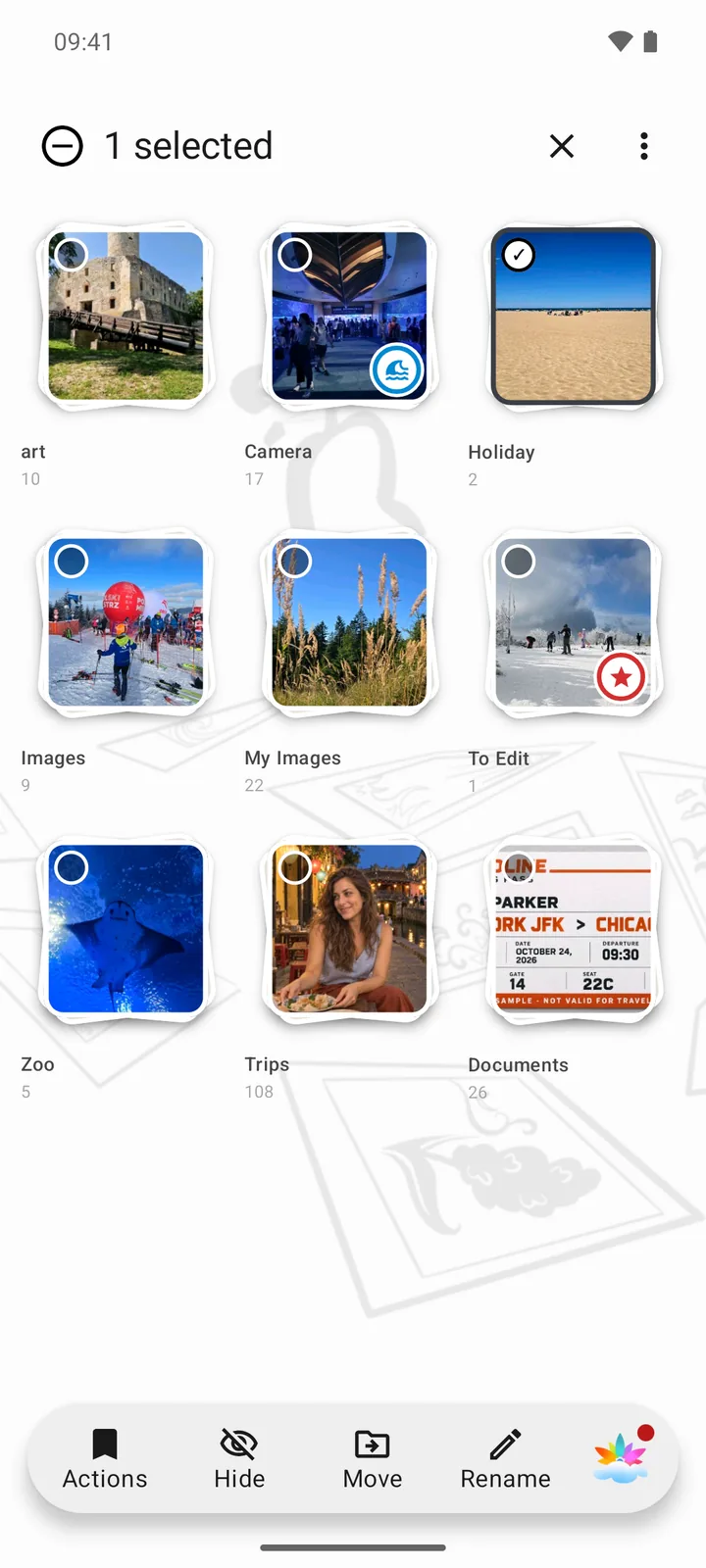
The albums disappear from the list. If every album on the current level is hidden, the screen shows a note with the number of hidden albums instead.
What hiding changes
- Hidden albums are not listed in Albums.
- Their photos and videos are left out of All Media, Camera and the rule views in Filters. The counts on the Filters cards leave them out too, and they are not used as cover pictures.
- Where items are left out of a view, a note at the top says how many media files are not shown because they are in hidden albums.
What hiding does not change
- The files stay in the same folder with the same names. Nothing is encrypted, and no passphrase is needed to see them again.
- Hiding only applies inside SyncGallery. Other gallery apps and file managers still show these photos and videos.
- Your sync rules keep working on hidden albums as before.
To keep photos and videos behind a passphrase, use a vault instead; see Vaults. To ask for your fingerprint or screen lock whenever SyncGallery opens, see App lock.
Show hidden albums again
- In Albums, open the menu at the top right.
- Tap Show Hidden Albums. A tick next to it shows that it is on.
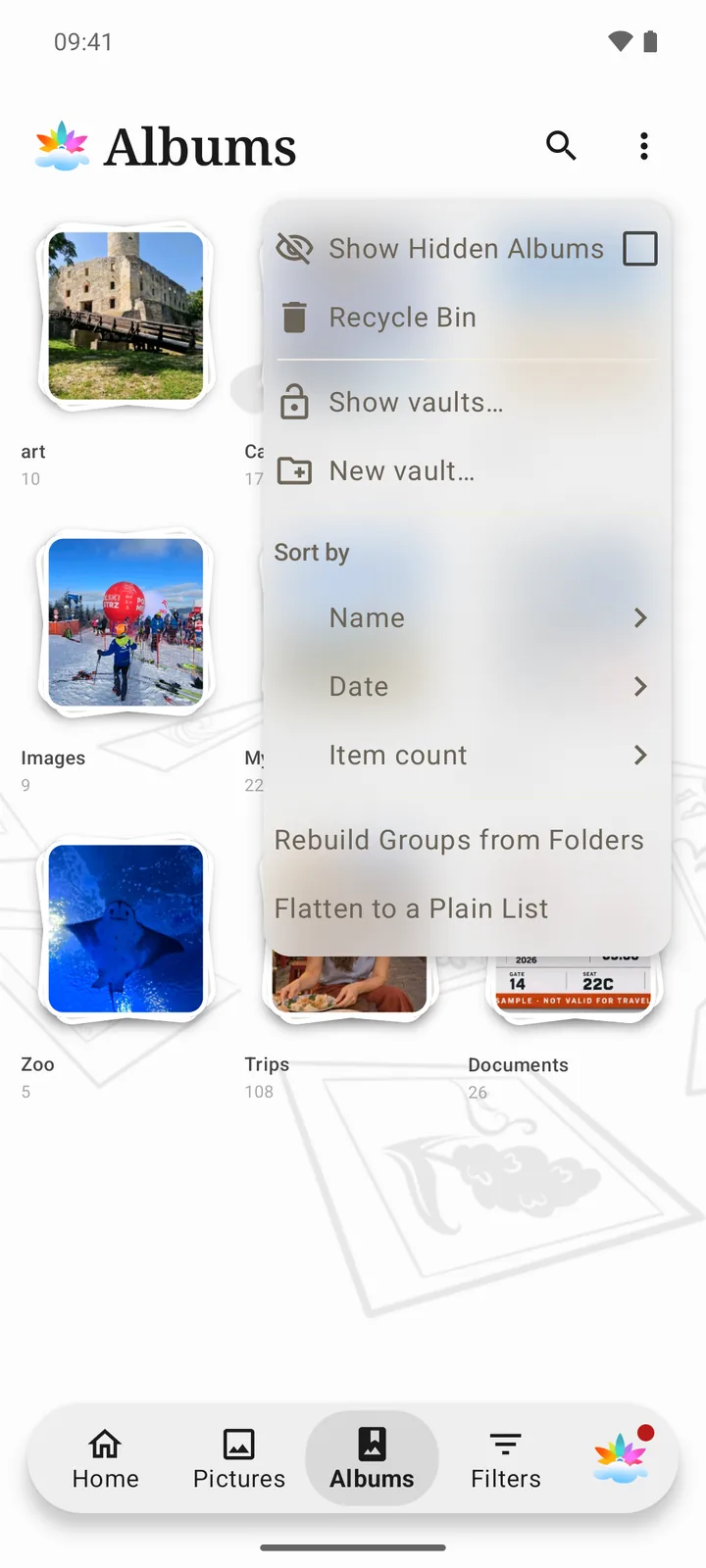
While it is on, hidden albums are listed again and appear dimmed, and their photos and videos are shown in all views. Tap the same item again to turn it off.
Unhide an album
- Turn on Show Hidden Albums as described above.
- Long-press a dimmed album to select it.
- Tap Unhide in the bar at the bottom.
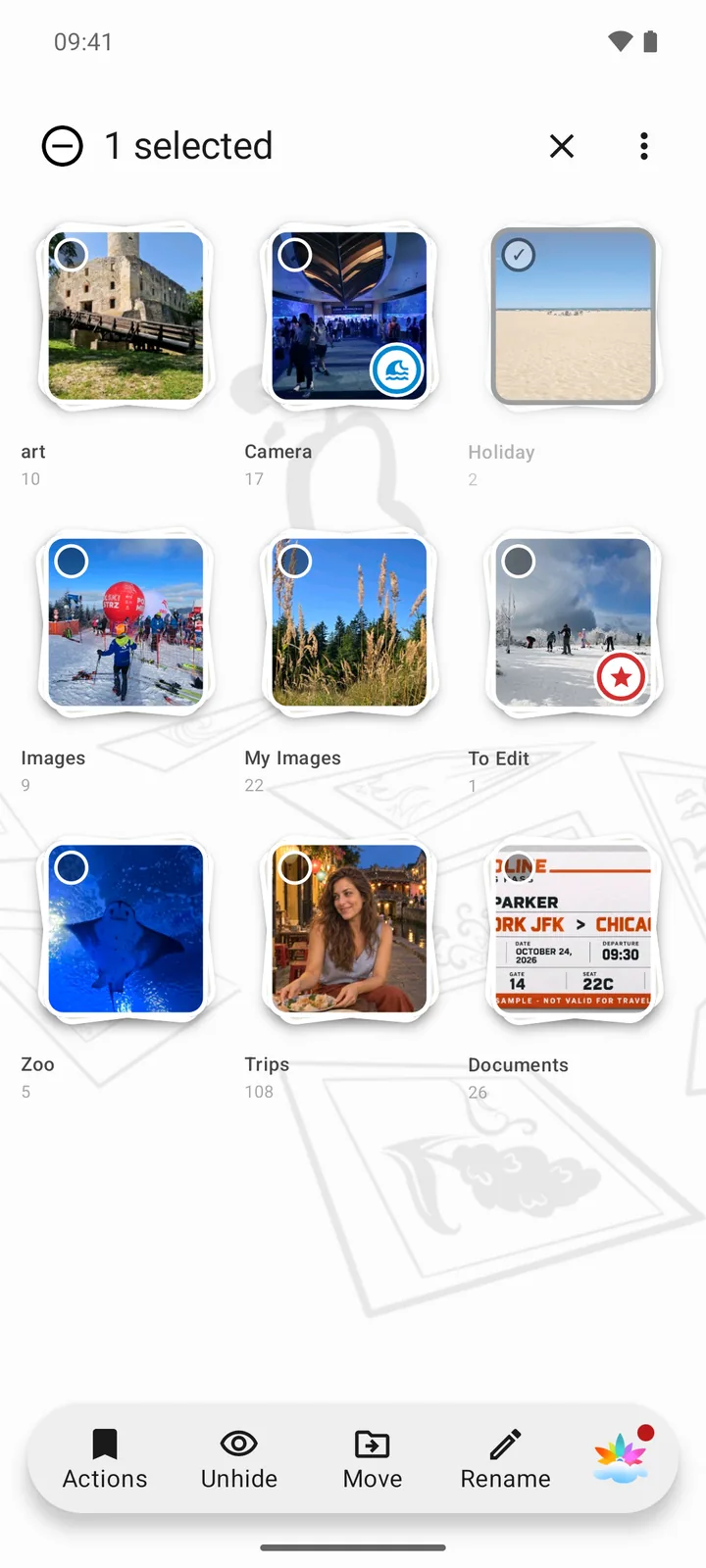
If your selection contains both hidden and visible albums, the bar shows both Hide and Unhide.
Next
To keep private photos and videos behind a passphrase, see Vaults.