 SyncGallery
Open the editor
Open a photo or video full screen in the Gallery section, then:
- Tap Edit in the bottom bar to edit the file itself. The main button in the editor is Save.
- Or tap More and choose Edit a copy (not shown for items in a vault). The main button is then Save a Copy, and the original is never changed. The app explains this in Editing a copy until you choose not to see it again.
The tools
The row of buttons at the bottom switches between the tools. Which ones you see depends on the file:
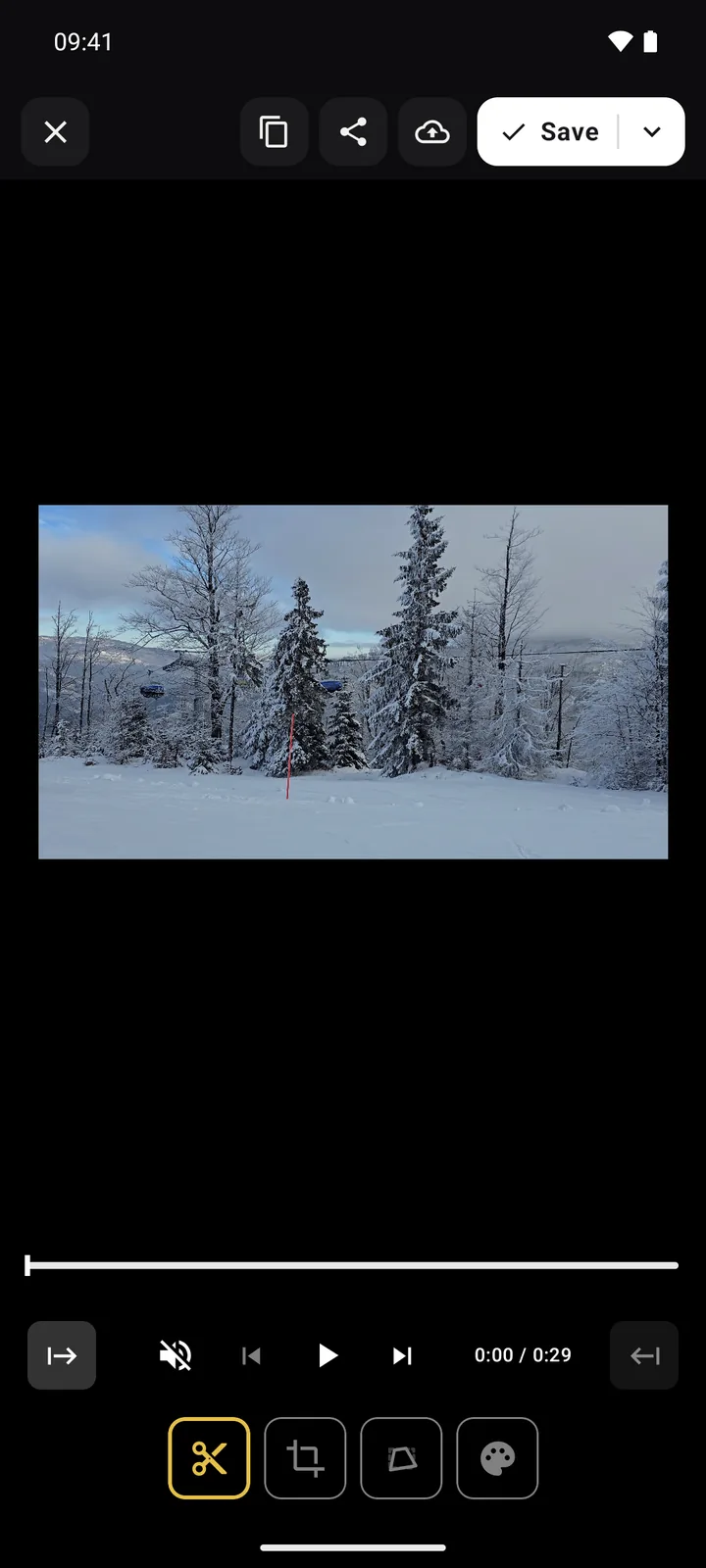
- Scissors (videos only): trim the video. Set where it should start and end.
- Crop: crop, rotate and flip.
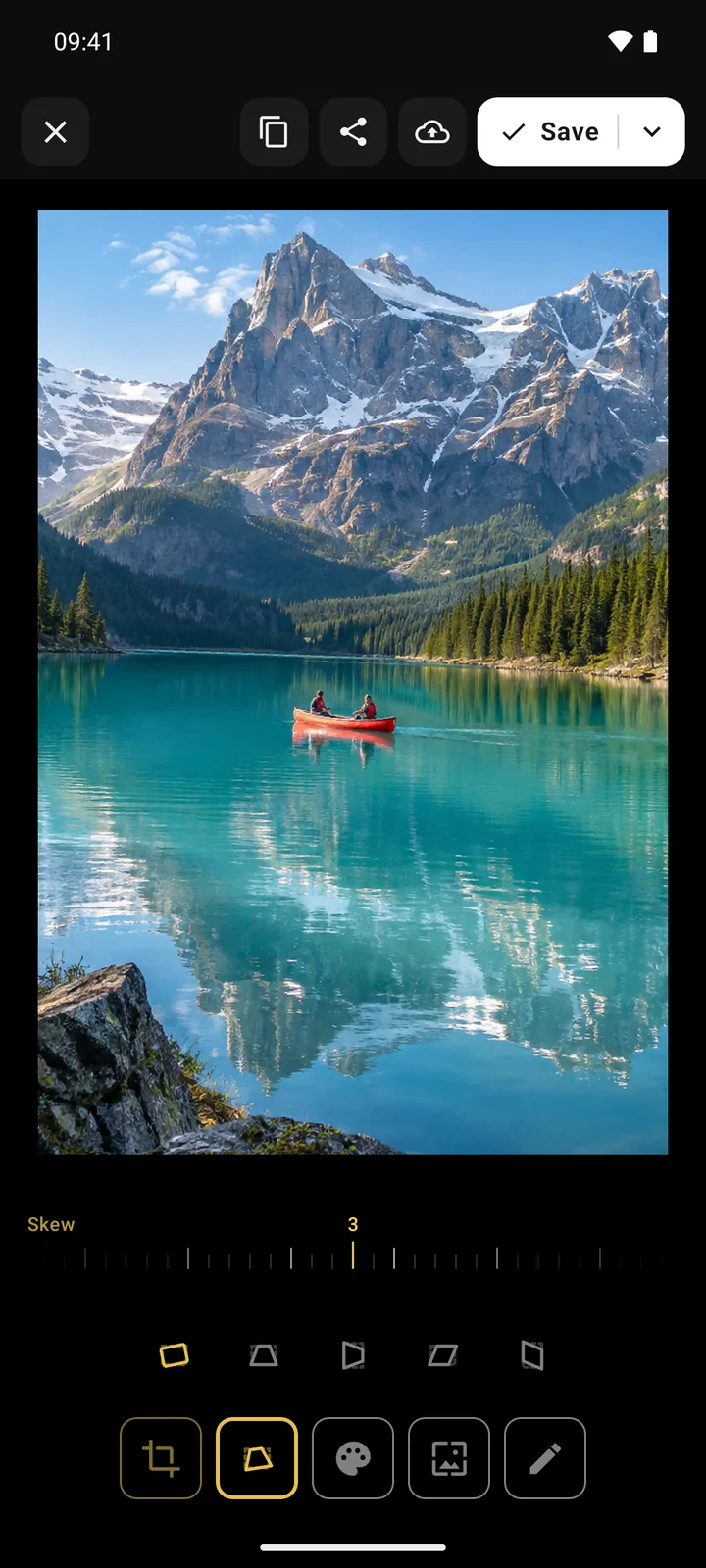
- Geometry: straighten slanted or tilted pictures.
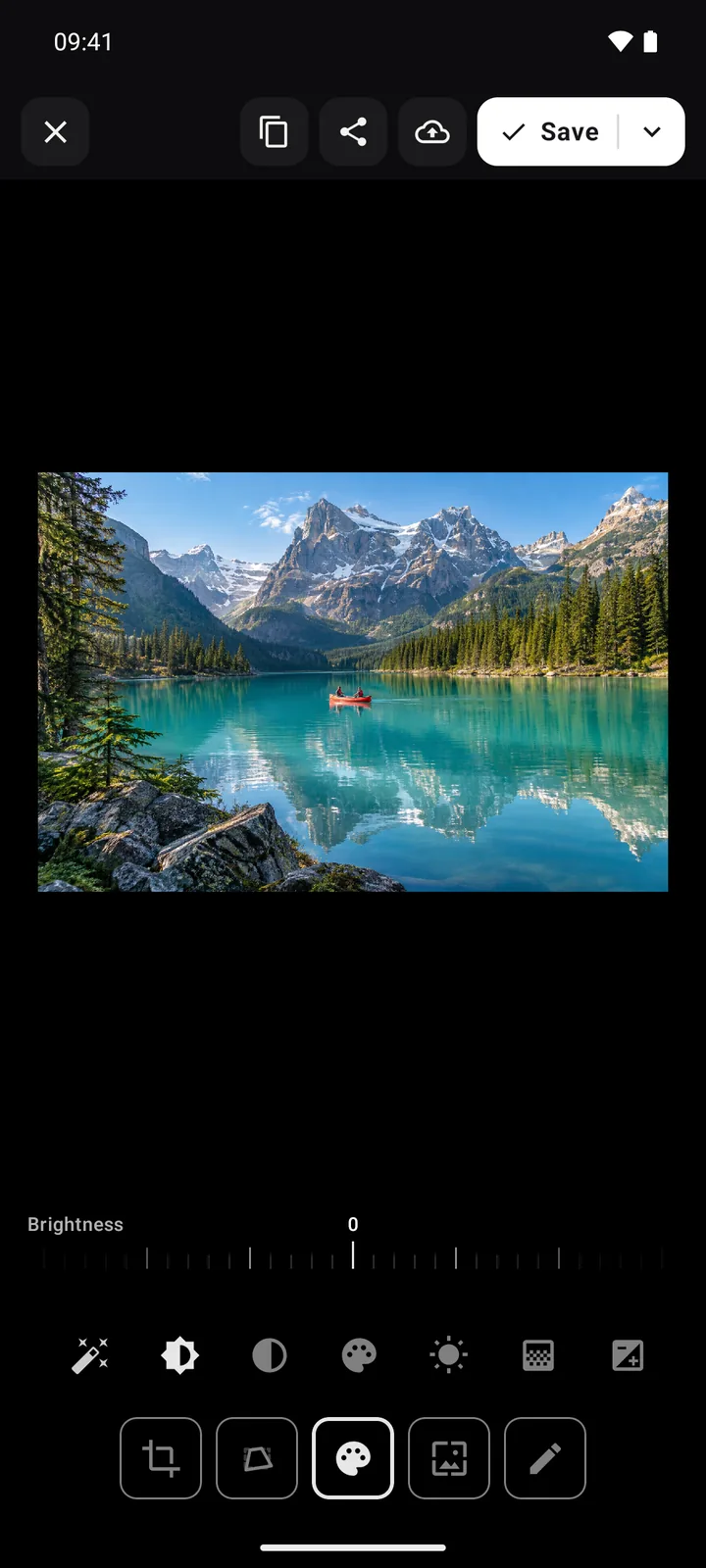
- Palette: brightness, contrast, saturation and more color settings.
- Picture icon (photos only, on supported phones): change the background.
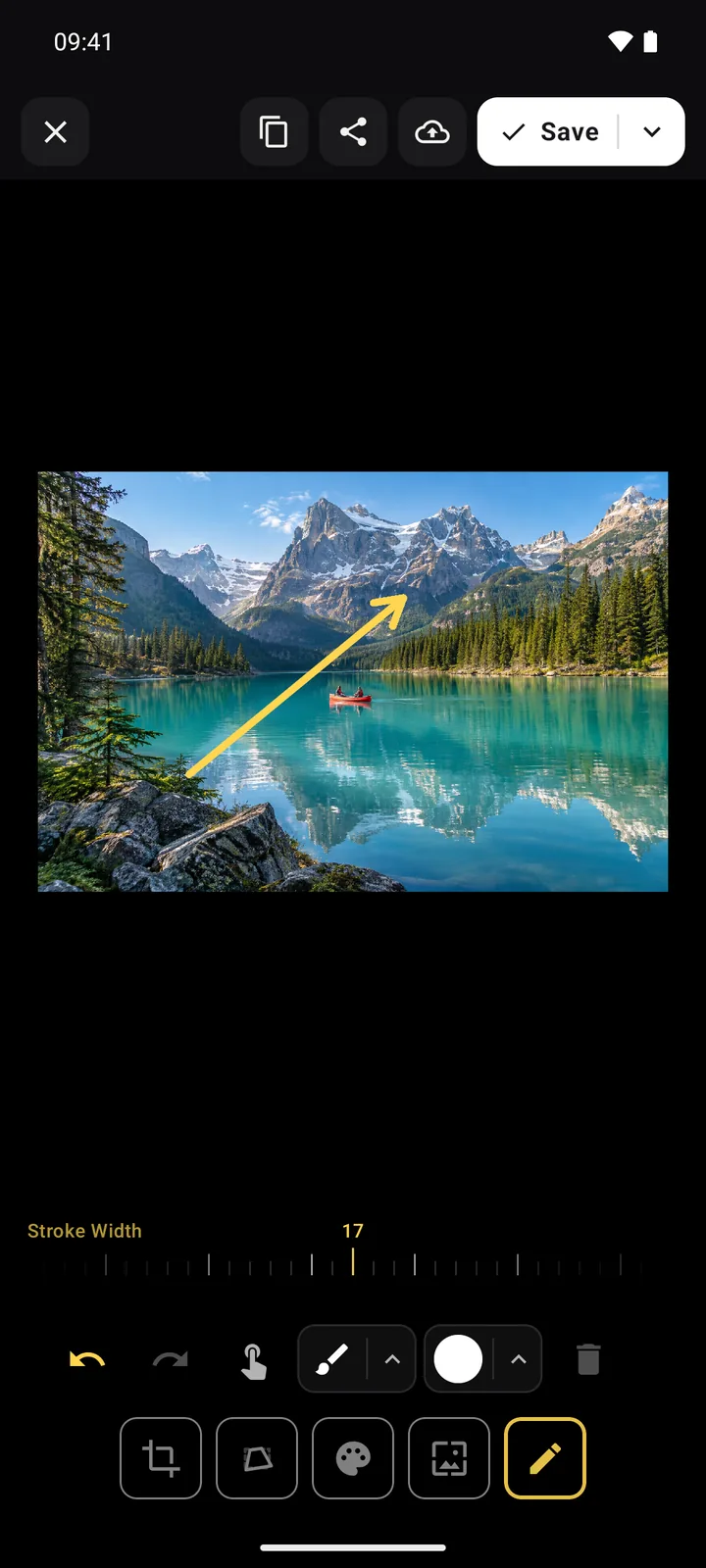
- Pencil (photos only): add text, arrows, lines, shapes and drawings.
On some phones, crop, geometry and color changes are not available for videos. The app then tells you so when you tap the button.
Trim a video
Set the start and end points to keep only the part you want.
Add drawings and labels
Choose the pencil tool, pick a color and stroke width, then draw on the photo.
Crop and rotate
Drag the corners of the frame to crop. The buttons above the tools set the shape of the frame: a free-form option, fixed ratios such as 1:1, 4:3 and 16:9, and, for photos, a magic wand button that suggests a crop automatically. Below them are buttons to rotate left, flip horizontally and flip vertically.

Straighten with geometry
The geometry tool has five icon buttons, each for a different kind of distortion, such as a slanted or narrowing picture. Tap one; its name, for example Skew, appears above the scale. Drag the scale to set the amount.
Adjust colors
The color tool always has brightness, contrast and saturation. On Android 12 and later it adds temperature, tint, exposure, fade and sepia, and on Android 13 and later also shadows, highlights, vibrance, blacks, whites and midtones. For photos, the magic wand icon at the start of the row sets these values for you. It uses a model that is part of the app and runs on the phone; the photo is not uploaded for this. If it finds nothing to improve, it says Photo looks great, no changes needed.
Change the background
The background tool finds the main subject of a photo and can blur the background, remove it, or replace it with another photo. It uses Google's ML Kit through Google Play services, which processes the photo on the phone. The first time, Google Play services may need to download the model before the tool works.
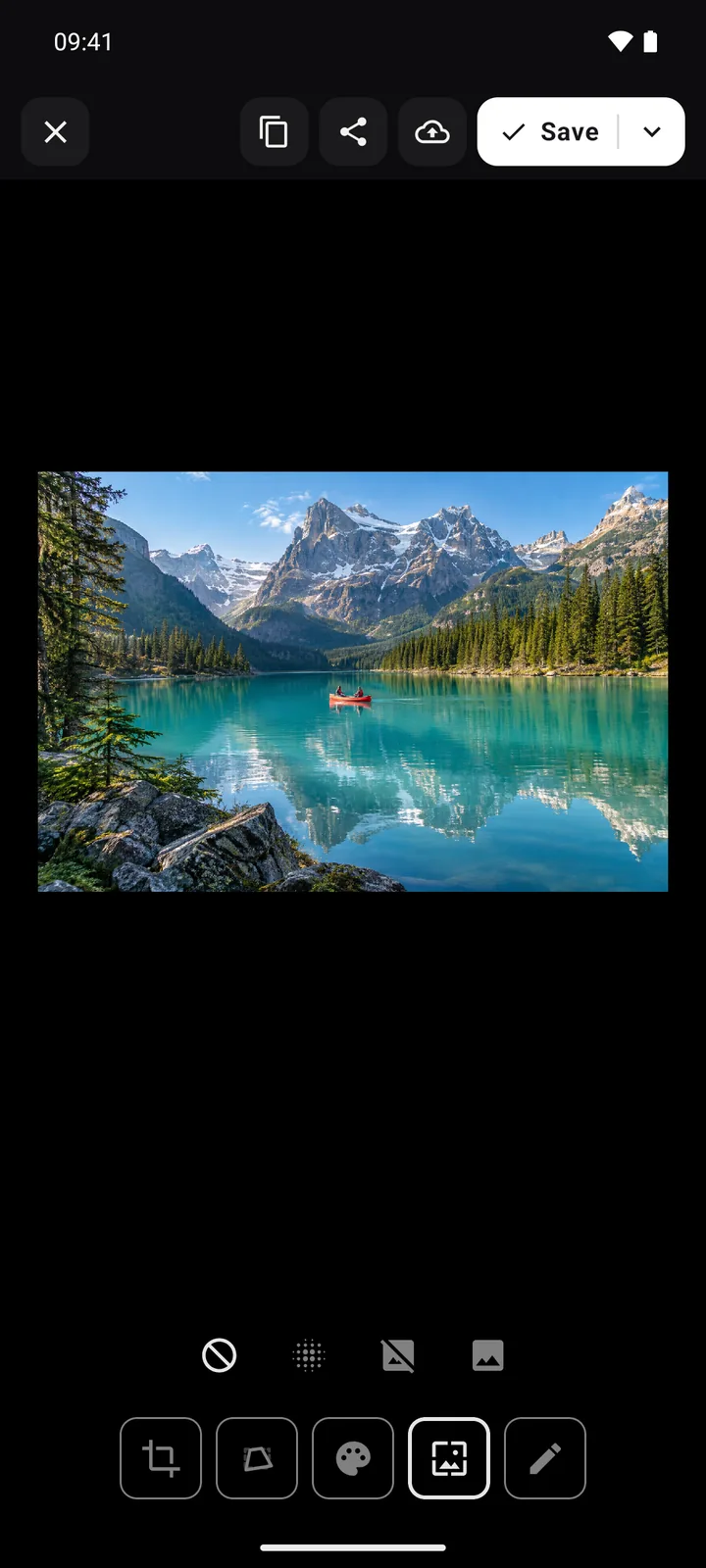
Save your edit
The top bar has a close button on the left, then buttons to copy to the clipboard, share and send to the cloud, and on the right the save button with an arrow for more options.
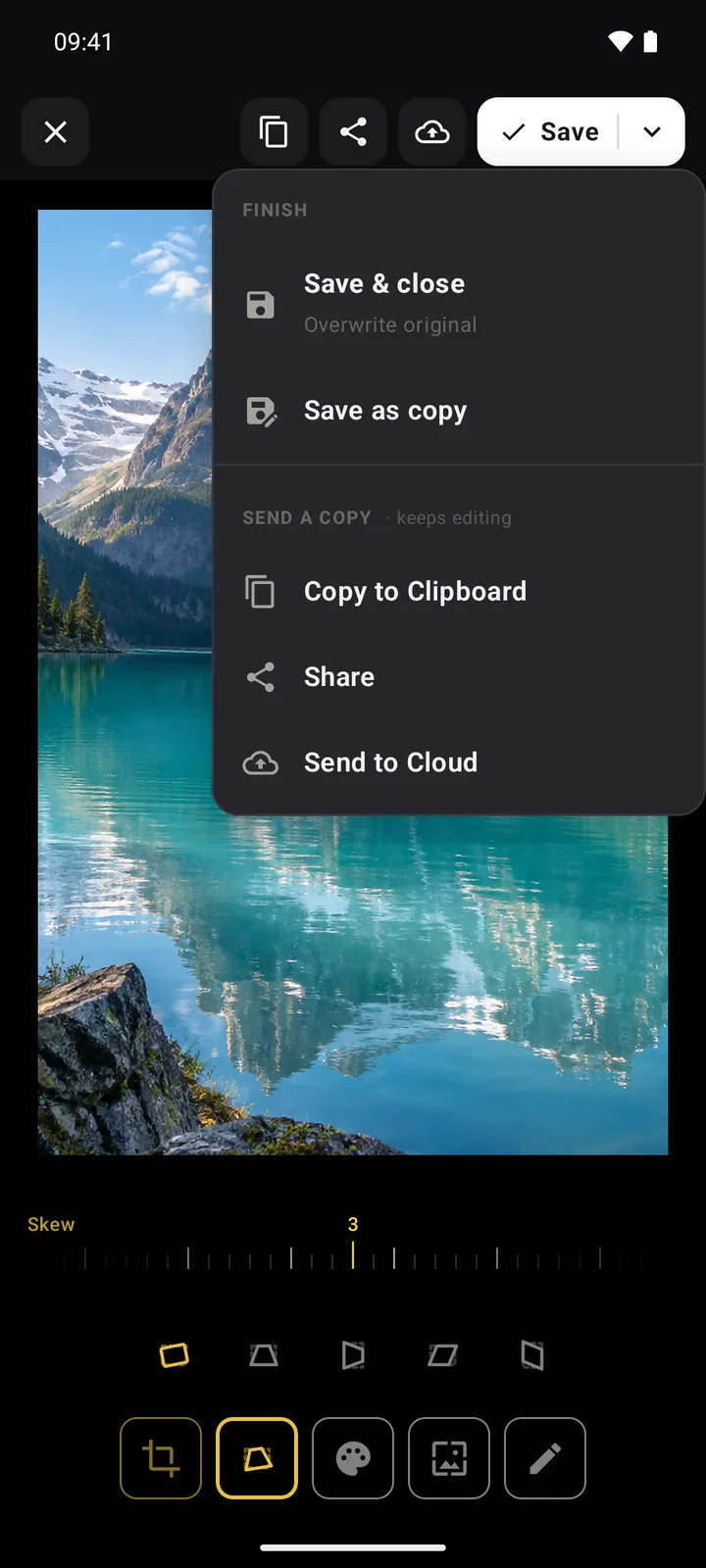
When you edit the file itself:
- Save replaces the original. This works for JPEG, PNG and WebP photos and for MP4 and M4V videos. For other formats, such as HEIC, the app asks where to save a copy instead.
- In the menu, Finish has Save & close (only for the formats that can be replaced) and Save as copy, which asks you to choose an album or folder and tap Save here. The original stays unchanged.
Before an original is replaced, Save Originals When Editing keeps a copy of it in the Pictures/SyncGallery/Originals folder. For items in a vault, the unedited copy stays in the vault instead. This setting is on by default and is in the Advanced group of the settings menu.
The Send a copy section keeps the editor open:
- Copy to Clipboard copies the edited picture. For a video, it copies the current frame as a picture.
- Share sends the edited result to another app.
- Send to Cloud opens the same screen as sharing into SyncGallery, where you pick one of your rules. See Send files to SyncGallery.
If you close the editor with unsaved changes, the app shows the Discard changes? dialog. Tap Keep editing to go back or Discard to close without saving. When you edit the file itself and its format can be replaced, it also offers Save & close.
Editing items in a vault
For photos and videos in a vault, the buttons for the clipboard, sharing and the cloud are not shown. In a protected vault, a saved copy stays in the same vault. In a hidden vault, Save as copy lets you pick any album or folder, so the copy can end up outside the vault. See Vaults.
Next
To correct the date and time of photos, see Fix photo dates.